Layouts
A layout contains one to eight screens, with up to six editable measures per screen. Open a workout's layout to configure it. On phone, the editor shows live previews in a scrolling filmstrip, with sections for screens, edge measures and options. Wear uses paged previews and screen actions.
Modifying measures
Tap a measure in a preview to choose its replacement. On phone, search by name or use the category tabs; on Wear, choose a category and then a measure.
Choose Lap or Split for current progress, and Previous Lap or Previous Split for the segment that just finished. Completed-lap and split popup screens normally use the Previous categories. Overall contains activity-wide measures; Actions includes media controls.
Color coding
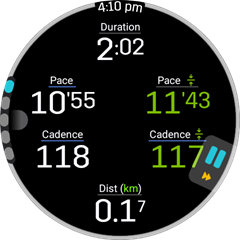
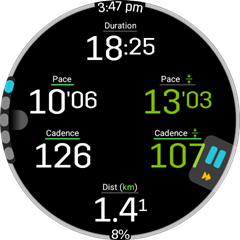
White values are current values or totals; green means average, blue minimum and red maximum. These statistics apply to the chosen category, such as the current lap or overall activity.
Identifying measure sources
A small coloured title underline identifies the source: grey for standard device sensors, Bluetooth colour for BLE devices, and green for Wear OS Health Client. Configure these in Sources.
Modifying screens
Use a screen's controls on phone or its additional-actions menu on Wear to change its layout, add above/below, move it, delete it or assign a screen type. The Home screen must be reassigned before you can delete it.
Add screen templates
Add above/below opens a chooser containing blank layouts, built-in templates and unique screens from all your workouts and custom library layouts. On phone, category tabs sit above square previews; position pills show the count and current position. Wear shows categories followed by paged previews. Tap a preview to add an independent copy.
Categories match the measure chooser. A lap-progress template includes completed/remaining, effort, type and progress. Screen-type colours match the editor:
| Template type | Behaviour when added |
|---|---|
| Home | Becomes the layout's Home screen. |
| Previous Lap / Previous Split | Becomes the Lap / Split event screen. |
| Alert | Becomes the Alert event screen. |
| None, including current Lap / Split | Adds an ordinary screen. |
Adding always inserts a new screen at the requested position. If another screen has the same type, its type becomes None; its content is kept for you to edit or delete manually. Add is unavailable at eight screens. Change layout changes the selected screen's arrangement while keeping its measures and type.
Media controls
In the measure chooser, search for Media, or open Actions, to add play/pause, next/previous track or volume up/down. Add Select source and choose the default source for every media control in the layout:
| Source | Controls |
|---|---|
| Watch | The watch, even when the layout is edited on phone. |
| Mobile | The paired phone, even when used from the watch. |
| Device | Whichever device is currently displaying the layout. |
The Select source icon shows the active choice: phone, watch, or a combined phone/watch icon for Device. During tracking, tap it to choose another source for all media controls across the layout. This choice lasts for the current workout on that device; the saved default is used for the next workout. Multiple source selectors share the same choice. Edit any selector to change the saved default.
The Media controls screen template includes the selector and all five controls. Newly added controls use Device until a layout source is configured. Older layouts keep their individual targets until you add a selector.
Rapid taps, including repeated taps on one button, run in order across all media controls. Each queued command keeps the source selected when tapped; its timeout starts when it is sent. A failed command reports unavailable and the queue continues without retrying it.
Remote commands require a connected companion with the updated app on both devices. Commands are not redirected to another source or saved for reconnection. Playback response depends on the media app; the play/pause icon is a button, not a playback-status indicator.
Options
- Hold: choose the screen to return to after Lap, Split or Alert events. None returns to the previously viewed screen. Manually changing screens cancels that automatic return. Event countdowns continue while the display is off.
- Screens per page: show one or two screens together during phone tracking. This does not change the eight-screen layout limit.
- Horizontal scrolling: optionally swipe sideways through tracking screens on phone or Wear. Editor previews remain vertical on Wear.
- Cyclic scroll: wrap from the last screen to the first and back on phone or Wear.
- Show titles / Font: control measure labels and the tracking font.
- Reset: restore workout layout defaults; this is unavailable for library layouts.
Screens per page is phone-only and marked in the editor. Wear shows one screen per page, with horizontal scrolling and cyclic scrolling available during tracking.
Edge measures
Place up to four extra measures around the screen edge, such as the time of day. Use the colour picker to choose their foreground/background style and preview it.
Library link
Use the Library selector to link a shared layout to multiple workouts. Editing the linked layout updates every workout using it. Adding a screen from the template chooser copies that screen instead of linking it.